Wednesday, May 15, 2013

Canon 7D, ISO 12800 and Lightroom, in practice

by Hasan Karagülmez


Canon 7D with 24-70mm f2.8 L

Introduction

The Canon 7D.

Loved and loathed probably equally by its (ex-)users, if the great photo-forums are to believed.
Most of the criticisms are in regard to the ISO-performance of the camera, which is often said to be, well, awful.

Well, it *is* a pretty old camera I guess. In fact, I think I've got mine since late 2009 and there have been some amazing camera's coming out in the meantime.

Like a lot of photographers I'm really lusting after a full-frame camera like the 6D (if only it wasn't for the rather pedestrian autofocus...) and the 5D Mark III for their amazing high-ISO performance.
Now, don't get me wrong, the 5D Mark III is really the full-frame camera that I want, but it doesn't exactly come in cheap :)

So, I'll just have to make do with my crippled- crop-sensor camera in the meantime... so why not experiment a bit, right?

ISO 12800 Test

One of the things I wanted to try out is to see how the Canon 7D would hold up at its maximum ISO, which is ISO 12800. Now... for those regularly reading reviews of camera's, this is bound to result in absolute disaster with APS-C camera's - let alone a pretty old one!

Or is it?

Now, I'm not one to peruse really scientific testing of high-ISO, so I won't - besides, I'm far too lazy to do something like that! I just wanted to know what my camera will perform like in practice in such a situation.

For me that means using Adobe Lightroom 4, shooting RAW and, in this case, shooting ISO12800 of course :)

For these test-photo's I've used the Canon 24-70mm 2.8 L lens. It's a very late model and performs stellar as far as I'm concerned. These shots were taken with a polarizer-filter on it, which I believe caused some flare (yes, at night). It's not impossible that I'd be using a polarizer at night, so for me this is still a practical situation.

All shots have been imported in Adobe Lightroom, and then edited with the available controls. That means doing cropping, setting white-balance, doing noise-reduction and such, all within Lightroom.
Don't get me wrong, I have no doubt that PhotoShop is capable of superior results, because of more fine-grained control, but for me that's just not practical as that would take a lot more time - time I don't have. Sometimes good really is just good enough.


Enough talk! Let's see what happened!

Note: all these photo's are available on the webalbum btw! All shots have a max-side of 1980px (i.e., more than enough for web-use).

Shot 1

First image, a pretty dark street. The buildings appear pretty dark because of the directional street lighting, aimed at the street:
Canon 7D - ISO12800
Shutter: 1/25th, Aperture: f2.8, handheld ISO12800,  Exposure compensation: +2/3

It's possible to slightly sharpen this across the entire image, but it'll look increasingly worse at higher resolutions. You'll get away with it at these sizes, check it out, same image:
Shutter 1/25th, Aperture: f2.8, ISO12800 - increased clarity and brightness slider in Lightroom

Shot 2


OK, second image, another dark street, more like an alley:
Shutterspeed: 1/6th, Aperture: f2.8, handheld ISO12800. Exposure compensation: +1
Not too bad noise-wise, usable as well. Considering the shutterspeed on this non-stabilized lens, sharpness is actually OK in my book.


Shot 3


Next photo, mostly lit by shoplights, and low-intensity street lighting:
Shutterspeed: 1/30th, Aperture f2.8, handheld ISO12800

Again, not too bad. For ISO12800, this looks pretty OK considering the situation, even at a resolution of 1980x1320


Shot 4, underexposing, then pulling back up in postprocessing


For the next photo, I wanted to test what the result would be if I would underexpose 1 stop (-1EV) and then pull that back up in post-processing.
Let's see what happened:
Shutterspeed: 1/60th, Aperture f2.8, handheld ISO12800

Ouch. Seems like that doesn't work too well...

Let's see what happened when we use the expose-to-the-right principle:
Shutterspeed: 1/8th, Aperture: f2.8, handheld ISO12800. Exposure compensation: +2/3

There's a bit of motion-blur caused by the shutterspeed, but the resulting image is a lot cleaner. Check the H&M sign on the left and the tree-top in the middle - there's a very big difference.
So, same ISO, different exposure -> completely different noise-result.


Shot 5


Another shot in the same street, also using expose-to-the-right principle:

Shutterspeed: 1/30th, Aperture: f2.8, handheld ISO12800. Exposure compensation: +2/3
Focus on the puddle. Pretty good result all-in-all.


Shot 6


OK, walking a bit farther. This is a pretty dark spot as well, street mostly lit by the shops:
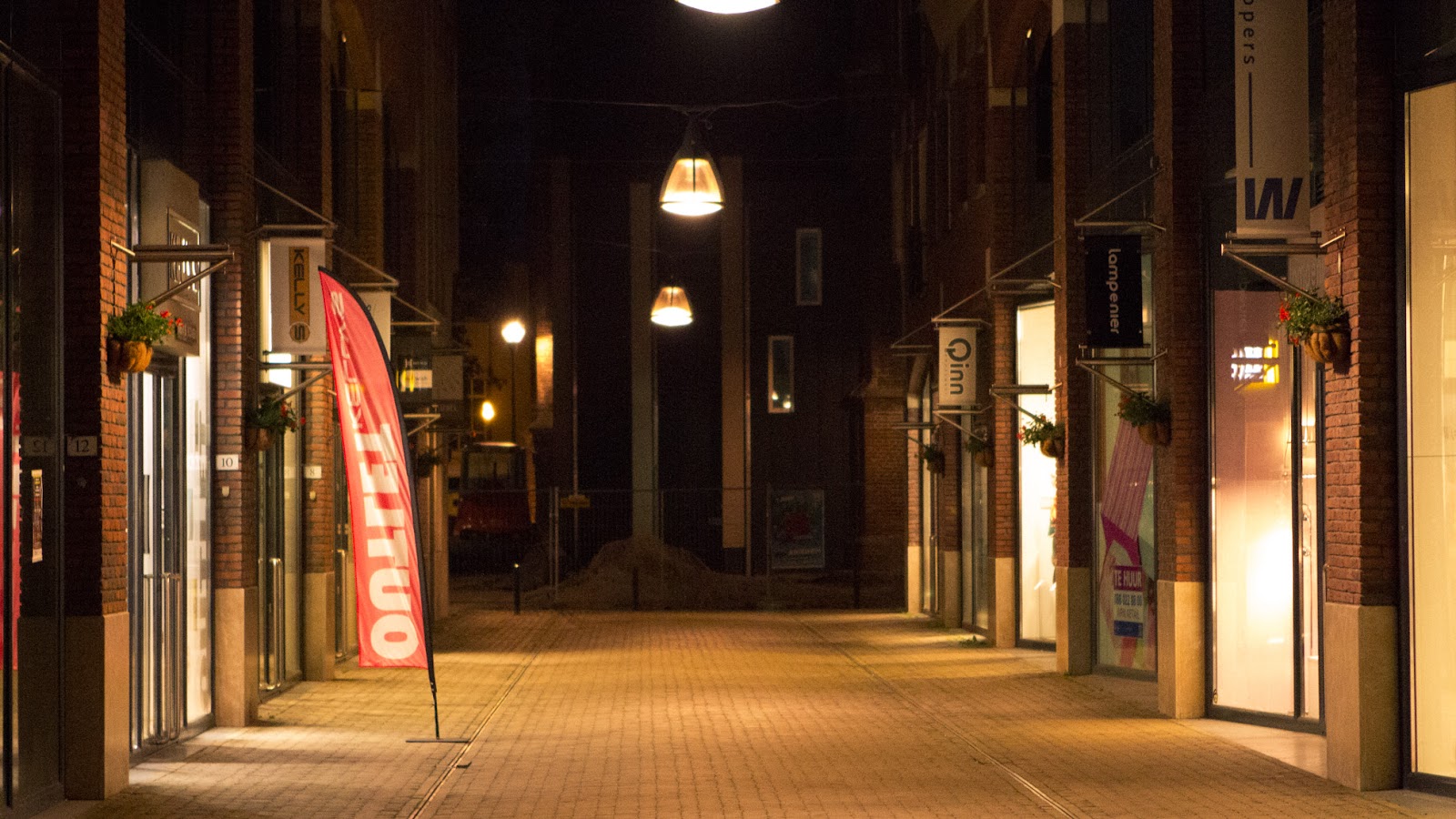
Shutterspeed: 1/30th, Aperture: f2.8, 70mm, handheld ISO12800, Exposure compensation: +2/3 

Standing still, but zooming out to 24mm introduces some very dark walls into the shot, and it´s on these walls where you can see that noise is more pronounced.
Perhaps I should have exposed a bit more to get rid of more noise as much as possible:
Shutterspeed: 1/30th, Aperture: f2.8, 24mm, handheld ISO12800, Exposure compensation: +2/3 

Shot 7


So, what happens when we overexpose quite a bit, but then pull back the exposure in Lightroom, 3 stops back in this case:
Shutterspeed: 1/15th, Aperture: f2.8, 70mm, handheld ISO12800, Exposure compensation: +1 1/3 

Nice, that's one of the cleanest results thus far! It seems working like this gives pretty good results!


Shot 8


Let´s try reasonably close detail shot of a flower:
Shutterspeed: 1/15th, Aperture: f2.8, 70mm, handheld ISO12800, Exposure compensation: +1 1/3 


If you click on the image or head over to the webalbum for this shot, you can view it larger. There you'll see that detail is actually pretty well retained, but there's quite a bit of noise in the out-of-focus areas.

That's too bad, but also good in a way: because out-of-focus areas are.. well... out-of-focus anyway, you can apply more noise reduction in those areas.


Shot 9

Let's try and re-use that +1 1/3 exposure compensation for the following shot, hopefully resulting in a better result:

Shutterspeed: 1/20th, Aperture: f2.8, 27mm, handheld ISO12800, Exposure compensation: +1 1/3
Again, a pretty good result.

Shot 10

The disadvantage of adding a lot of exposure compensation consistently at these high-ISO's, is that spots which are already quite well lit get overexposed more easily.
Shooting RAW will help you, but there's a limit to what it can do, such as in this shot where I used the highlight-slider to slightly recover the overexposed areas.

Shutterspeed: 1/20th, Aperture: f2.8, 27mm, handheld ISO12800, Exposure compensation: +1 1/3

Dynamic range is simply less at high-ISO's, limiting your ability to recover highlights and push shadows  so it's just essential to nail the exposure when taking the photo!


OK, enough photo's, let's keep it at that shall we!

There are a couple of more images in the webalbum. Some photo's have more variants, whereby the second one is usually the one which is slightly sharpened.
They tend to look worse on high-resolution but usually pretty ok at smaller resolutions.


Conclusion


In my opinion, the Canon 7D ain't half bad when using these extreme ISO's. Sure, don't expect superb per-pixel sharpness at ISO 12800, but come on... it's ISO12800! On a cropsensor-camera!!

So, some things I've learned, which would work for me in practice:
  • It will *definitely* help to "overexpose", or rather Expose-to-the-Right on the histogram. Underexposing and then pushing another stop at ISO12800 (making it a ISO 25600 equivalent) is not a good idea.
  • Make sure to get as much light on the sensor as possible, and definitely expose-to-the-right and then ideally reduce the exposure a bit in post-processing to get as little noise as possible.
  • Noise will manifest itself distractingly mostly in out-of-focus areas. Too bad for your bokeh, but then again, you *CAN* apply more noise-reduction in getting the out-of-focus areas more clean noise-wise and get away with it.

    Note that color-noise is far more objectionable than luminance-noise! Lightroom doesn't even seem to use luminance noise-reduction at standard.

    Lightroom does have a pretty high Sharpness setting by default though (25), which can, and will, also sharpen noise.
    Lightroom Sharpness and Noise Reduction
    Lightroom Sharpness and Noise Reduction, try using less Sharpening
      Tip: try and use less of sharpening and check the results.
       
    • As a personal favorite, shoot RAW. It makes post-processing a lot easier, changing white-balance without drama for example, as well as noise-reduction settings.
      If shooting JPEG works for you, then that's all fine-and-dandy of course - it'll save a lot of disk-space for sure :)
    • Set your expectations: don't expect amazing quality at this ISO suitable for A3 prints, but if it makes the difference about missing a shot or a having noisy one, I know what I'd choose.

    The best thing for me is that the Canon 7D does NOT exhibit banding noise, even at these extreme ISO's! For those of you having been "lucky" enough to experience that, you'd have noticed that banding noise is a very distracting type of noise, far more than colour- or luminence-noise.

    By the way, from what I understand from reading photo-forums is that apparently there's some copy variation with regard to sensor performance of the Canon 7D. I find this surprising, because I bought the 7D pretty early on, and I'd have expected it to get better along the way, if anything. In other words: your mileage may vary, though I'd love to hear what your experience has been!

    Also: you'd be surprised with what you'll get away with when resizing, don't just delete photo's if your intent is to just post them online. Also, don't go zooming into 100%, no sane person does\should do that...

    By the way, if you want to see how the 7D held up in the very dark Mercedes-Benz Museum, check my other recent blogpost: Visit the Mercedes-Benz Museum in Stuttgart!

    There are more than 150 photographs and where you can see how it handled the low-light. All those shots have been edited in Lightroom as well.


    That's it, don't forget to have fun and happy shooting!


    Related links

    Here are some related links which led me to do my own small test. Some people get some amazing results.
    1. "Visit Mercedes-Benz Museum in Stuttgart!", Hasan Karagülmez,  Used the 7D in this pretty dark museum. If you want to see how it held up, check the following blogpost,
      http://hasankaragulmez.blogspot.com/2013/05/visit-mercedes-benz-museum-in-stuttgart.html
    2. "Post your ISO 12,800+ photos!"-topic on photography-on-the.net,
      http://photography-on-the.net/forum/showthread.php?t=919780&highlight=12800+show
    3. "Mini-Review: 7D vs 5DII High ISO 3200-25600"-topic by Teamspeed,
      photography-on-the.net, http://photography-on-the.net/forum/showthread.php?t=930196
    4. "7D vertical banding - a "regular fault"?"-topic, photography-on-the-net,
      http://photography-on-the.net/forum/showthread.php?t=759283
    5. "Mini-Review: Trying To Get the Most out of the 7D High ISO Images "-topic by Teamspeed, photography-on-the-net, http://photography-on-the.net/forum/showthread.php?t=1079217
    6. "ISO 12800 Canon 7d "-topic on photography-on-the.net, http://photography-on-the.net/forum/showthread.php?t=1248911&highlight=post+12%2C800

    Sunday, May 12, 2013

    Visit the Mercedes Benz Museum in Stüttgart!

    by Hasan Karagülmez
    Hey all, just want to share my impression of the Mercedes-Benz Museum in Stüttgart, Germany. I visited it as part of my roundtrip of visiting the BMW, Porsche and Mercedes-Benz museums. I visited them all in December 27th, 2012, which explains the Christmas-theme in some of the photo's :)

    Anyway, this blogpost is about my impression of the Mercedes-Benz museum. I've uploaded 155 images, all of which you can view on the webalbum!

    On to the museum itself: for those who've never been there, I can really highly recommend it! Mercedes-Benz have put a lot of effort into their museum and it really really shows.

    For starters, you can really feel ans see that there's a lot of love for their history. For example, a lot of youngtimers are just standing there proud in the main-entrance hall, right next to new models. Rightfully so, they're beautiful!
     
    Entrance hall of the Mercedes-Benz museum, in December 2012
    Entrance hall, December 2012


    Right, on to the museum itself! It´s just humongous, but starts off humbly :) After you've bought your ticket, you can take an elevator which goes to the top floor. As you approach the top, you hear faint noises of horses... weird! Does one of the other persons have a weird ringtone?

    Nope, when the elevator doors open, it all falls in place, because the noises were just a precursor to what you're about to see next which is...

    ... a horse!

    I don't think this was the horse making noises though ;)

    You quickly get to see the first ever car in the world after that though, which are laid out on a rotating plateau. In the surroundings there are a variety of vehicles and boats which have all been motorized in the course of history - showing you how the revolution of the internal combustion engine takes over the world.


    After that, you can dwindle down each department of the museum, going downwards. At the walls between intersections images are collected of what happened in the world, throughout the years - think of the invention of x-rays, Einstein's Relativity Theory, invention of aeroplanes, WWII, the landing on the moon, etc.


    At each department, models of a specific era are laid out. Being there in person you can really see how big those oldtimers from e.g. the 1920's are! I was surprised at least. You really did not want to get hit by one of those mammoth cars, and I wouldn't want to park one of those in a tight spot either :)


    Slowly but surely, the farther you come down, the more you'll see of cars (and history) of the modern times. You'll even get a glimpse of the future, with concept cars and such.

    As one of the last stands, you're in for a grand finale with an overview of all Silberpfeile laid out for your viewing pleasure.


    If you visit, I would advise you to take your time for this museum, you can easily fill an entire day if you want to.
    In fact, I did actually fill an entire day with it, and I don't think I've even seen it all!

    You certainly get value for money though! :)

    Some extra info for visitors:
    • For parents: You're welcomed to take your children along! There's even a bus where children are allowed to come in, as well as some trucks. You can take breaks at each intersection where you can sit, and have an overview of what's to come there as well.


    • For photographers: The museum is really beautiful but also quite dark! Be sure to keep that in mind. Full-frame photographers might be better off, but I struggled a bit with the 7D and Canon 24-70L 2.8, Sigma 30mm 1.4.

    I don't think I've used the kitlens, with Image Stabilizer, but I guess a stabilizer will help.

    Also, it's quite a busy museum, so almost inevitably you'll get people in the shots. Next time, I'm thinking of taking a monopod along, and use longer shutter times (hopefully slightly blurring people away in the shot). I'd also definitely take a polarizer along to get rid of reflections in the cars.

    That's it, if you want to view all the 155 images I took as part of this impression, visit the webalbum!


    Monday, May 25, 2009

    Copyrighter v0.5 - Texturing and roundedborders added!

    by Hasan Karagülmez
    Another big update, texturing support has been added!

    copyrighter v0.5 heartstexture and roundedborders

    That's Copyrighter v0.5, with a new roundedborder around the image, a textured border next to that, and another normal border as the outer border. All borders can be textured!


    Download
    You can download v0.5 by clicking HERE (352kB zip-file).

    The executable itself is only 88.5kB in size, and starts up instantly.

    Included in the zip are:

    • all the textures used in the samples below
    • an HTML-page, containing a list of all the available colours
    • a text-file, containing a concise explanation of all available borders
    • a sample preview image (which you can change yourself if you want), sample modifydescriptor.xml file and sample copyright-image.


    Usage:
    Functionally, it's the same as all previous versions.

    Basically, just drag-and-drop images onto the main Copyrighter-window, the result is outputted in a subdirectory called "Processed".


    So... what are textures?
    For those who don't know, textures are (usually) small files containing a certain pattern. These patterns often seamlessly fit next to each other. This makes it ideal for use in games (say, an entire wall can be textured using only a single small image repeated many times), but it also means we can use it to texture borders in Copyrighter :)

    Where do I find textures?
    Textures can often be found for free, e.g.:

    And many many more!

    This blogpost has a link to twelve other sites containing free textures:

    http://www.bittbox.com/freebies/freebie-roundup-12-places-to-download-free-textures/

    The heart texture used above is from this page:

    http://www.new-textures-and-3dmodels.com/heart-textures-6.html

    Just Google for "Free textures" if you want to search for other sites. You're of course also free to create your own texture :)

    It's best not to use huge textures, normally something with an width and/or height of 75 pixels is just fine.

    How do I use them?
    In order for textures to be used, I've defined some new XML-attributes with which you can designate what to use and how the texture should behave.

    For example, the solidcolourborder only had the colour attribute, which you could use as e.g. colour="pink".

    Well, now you can also use "texture", "texturemode" and "texturescale". The texturemode and texturescale are optional, but texture is required.

    For example, the sample Copyrighter v0.5 screenshot used this XML:


    <?xml version="1.0" encoding="UTF-8"?>
    <modifiers>
    <modify type="solidcolourborder" colour="pink" width="10" />
    <modify type="solidcolourborder" width="60" texturescale="1.0" texturemode="default" texture="hearttexture.jpg" />
    <modify type="roundedborder" colour="pink" width="8" />
    <modify type="image" opacity="1.0" />
    <modify type="copyrightimage" opacity="0.5" position="bottomright" percentage="50" filename="example.png" />
    </modifiers>

    Important: Place any texture you've got in the same folder as the Copyrighterer.exe folder, this ensures it can be found.

    Here's an example with texturescale set to 0.5, as you can see, the texture is smaller and more textures are used to fill up the rectangle:

    copyrighter v0.5 heartstexture at texturescale 0.5

    And here's an example with texturescale set to 2.0, the texture is now twice as big:

    copyrighter v0.5 heartstexture at texturescale 2.0

    So, basically, with texture you set the filename of the texture. With texturescale you can set the size of the texture and with texturemode you can set how the texture should behave.

    This is because there are a couple of options, the default behaviour is that the texture is copied to the left and to the bottom untill the entire rectangle is filled with the texture.

    Another important texturemode is scaletofit. This, as the name suggests, scales one texture so that ONE texture fills the ENTIRE rectangle. This can be used for if, for example, you've got a texture which is in fact a gradient.

    So, another sample using a gradient image would be:


    <?xml version="1.0" encoding="UTF-8"?>
    <modifiers>
    <modify type="solidcolourborder" colour="black" width="10" />
    <modify type="solidcolourborder" width="62" texturemode="scaletofit" texture="blacktowhitegradient.jpg" />
    <modify type="solidcolourborder" colour="black" width="2" />
    <modify type="image" opacity="1.0" />
    <modify type="copyrightimage" opacity="0.5" position="bottomright" percentage="25" filename="example.png" />
    </modifiers>


    which gives the following result:

    copyrighter v0.5 gradient scaletofit

    Transparent Textures
    Transparent textures are supported, e.g. here's an border using a hearts-texture, and over it another transparent border. You can accomplish this by setting the width of the underlying border to 0 (zero).
    Remember, that if you want to create a transparent border, you should use a file-type which supports transparency, e.g. PNG.


    <?xml version="1.0" encoding="UTF-8"?>
    <modifiers>
    <modify type="solidcolourborder" colour="black" width="3" />
    <modify type="solidcolourborder" width="0" texture="hearttexture.jpg" />
    <modify type="solidcolourborder" width="62" texturemode="scaletofit" texture="blackgradient.png" />
    <modify type="solidcolourborder" colour="black" width="2" />
    <modify type="image" opacity="1.0" />
    <modify type="copyrightimage" opacity="0.5" position="bottomright" percentage="25" filename="example.png" />
    </modifiers>


    Which gives the following result:

    copyrighter v0.5 overlayed transparent gradient border


    Overlaying a texture which contains transparency, is, however, not fully supported IF the underlying border is a colour. The previous sample works, because hearttexture.jpg is underneath the blackgradient.png border.

    Roundedborder texturing
    Because the roundedborder basically consists of two borders (the foreground and background), you can texture them both. This is a pretty specific case, though, as only a little bit of the background will be shown, but if that's what you want to do then you can :)

    Here's a closeup of the edge of a roundedborder, untextured, set with a foreground- and backgroundcolour which has the following close-up result:

    copyrighter v0.5 roundedborder blue blackground green

    The green colour is the background, the blue colour is the roundedborder itself.
    The foreground of the roundedborder is textured via the usual texture, texturemode and texturescale attributes.

    The background can be texturesset with backgroundtexture, backgroundtexturemode and backgroundtexturescale attributes. Of course, you can just specify a colour for the background with "backgroundcolour" :)

    Here's a sample, which is actually the content of the modifydescriptor.xml file containted in the zip, of an untextured roundedborder. Note that the background is explicitly stated as black, the same as the surrounding solidcolourborder:

    <?xml version="1.0" encoding="UTF-8"?>
    <modifiers>
    <modify type="solidcolourborder" percentage="6" colour="black" />
    <modify type="roundedborder" width="10" colour="white" background="black" />
    <modify type="image" opacity="1.0" />
    <modify type="copyrightimage" opacity="0.5" filename="example.png" percentage="25" position="bottomright" />
    </modifiers>


    which gives the following result:

    Copyrighter v0.5 mainimage


    Final Words
    So, to sum it up, there's a new border you can use called roundedborder.

    Texturing for each border is done with the attributes texture (required), and the optional texturemode and texturescale attributes.

    So basically that's it!

    If you want to more extensive information, please check back to the blogpost about v0.3 and v0.4. A text-file with simple explanations is included in the zip-file. Of course, if you've got any questions or need help with textures or whatever, just let me know :)

    Known issues
    • Textures with transparency ARE supported, but might not always be rendered correctly. Transparent textures work best if the underlying border are also textured.
    • Supplying a texture AND a colour for a border is not supported, although you're free to try it out :)

    If you encounter any problems, as always, feel free to contact me :)

    Thursday, April 30, 2009

    Copyrighter v0.4 - Multithreading implemented!

    by Hasan Karagülmez
    So yeah, there you have it, Copyrighter has got multithreading now! :)

    copyrighter v0.4 mainwindow
    click for larger image

    Download
    You don't have to do anything to take advantage, just download the new zip-package HERE (366kB zip-file).

    A sample, copyrightimage, xml-file and preview image are included, as well as a small readme text-file.

    The executable itself is only 83.5kB, 2.5kB smaller than v0.3 :)

    Additional information
    Due to the architecture in place, multithreading was a relatively easy affair and I'm also pretty happy with the performance improvements. Testing on my Quad-core 2.4GHz Q6600 processor shows an improvement of around 2 times compared to the v0.3 of Copyrighter.

    I've tested this with a batch of 3440 images (!!!), with image-sizes varying from 800x533 pixels (a typical size I use for uploading images to the web) to about 2523x660 pixels, with filesizes varying of 84kB to about 556kB. I get almost 1100 images per minute with Copyrighter v0.4, versus almost 500 images per minute with version 0.3.

    Yes, I'm pretty happy with this kind of performance :)

    In this version, all the work is done on seperate threads, away from the UI-thread, which keeps the main program also nice and responsive :) Copyrighter v0.3 did all the work on the user-interface (UI) thread (which is why v0.3 hangs when processing), so that's fixed now!

    In fact, whilst it is processing, you can just drag-and-drop a new batch of images and they'll be processed as well. I've had it up to 24 simultaneous threads without a problem, processing different batches :)

    Threading
    Copyrighter v0.4 divides the work over the present (logical) processors in the system. Copryrighter starts with 2 threads (used in the main window), and when images are dropped, the amount of work is divided over the available processors. So, on my quad-core machine, there are 4 logical processors, and so (at most) 4 threads are created which will do the work. Copyrighter will then have 6 threads.

    If you've got a dual-core machine, the amount of work will be spread out over 2 additional threads, so Copyrighter will have then have 4 threads.

    When you drag-and-drop, that work will again be spread out over the available processors. So, in my quad-core machine, if Copyrighter was at 6 threads, it will then have 10 threads after an additional drag-and-drop.

    When all work finishes, Copyrighter will fall back to the default 2 threads.


    Final Words
    That's it really :)

    The working is still the same, so please check the blog-entry regarding v0.3 for extensive information.

    Basically, just drag-and-drop images onto the main program-window, images are outputted in a subdirectory called "Processed".

    I've always wanted to implement multithreading in Copyrighter and I'm glad I did. I hope this program can help you, let me know what you think - I'd really appreciate it :)

    Tuesday, April 21, 2009

    Copyrighter v0.3 - Batch Processor for Images

    by Hasan Karagülmez
    Introduction
    Well, after recently getting my driver's licence, I of course immediately went driving around programming some more :)

    This is actually a tool I've created before (hence it's version 0.3) but haven´t given it that much attention, mostly due to time constraints... Anyway, the goal of this tool, as the name suggests, was originally created to add a copyright picture to a series of pictures and add borders.

    I´ve also created it to make myself work with a couple of programming aspects, such as Design Patterns (Decorator, Chain-of-Responsibility, Strategy, Singleton, Factory patterns are all used here) and keep on working with C++ and Win32, as I do C# for a living :)

    Well, enough of the chit-chat, how is it used?

    Download

    UPDATE: v0.4 is available! Click Here


    I'll give this one upfront :)

    You can download Copyrighter v0.3 from here (400kB zip file).

    The executable itself is only 86 kB, and startup is instant. A sample copyright-image, preview-image and XML-file are included in the zip.

    Usage
    Images are processed by dragging and dropping onto the Copyrighter Window. Images of type TIFF, BMP (bitmap´s), PNG and of course JPG (jpeg´s) are all accepted.

    Processed images come in a subfolder of the executable, called "Processed". So, if the executable location is C:\Copyrighter v0.3.exe, the images will be outputted to C:\Processed\.

    Copyrighter uses an XML-file with the "modifydescriptor.xml" which tells it what to do with each image.

    The result of the current modifydescriptor.xml file is always displayed on the main window (click for larger image):

    copyrighterv0.3 mainimage

    To achieve the border effect in this sample, one thin white border and one big black border, the following XML can be used:


    <?xml version="1.0" encoding="UTF-8"?>
    <modifiers>
    <modify type="solidcolourborder" percentage="3" colour="Black" />
    <modify type="solidcolourborder" width="5" colour="White" />
    <modify type="image" opacity="1.0" />
    <modify type="copyrightimage" opacity="0.80" filename="example.png" percentage="25" position="bottomright" />
    </modifiers>


    Pretty simple huh?

    As you can see, Copyrighter works with so-called "modifiers" to identify the action that should take place.

    So, in this sample, there are two borders with a solidcolour, an image, and the copyrightimage - all described with modify-elements.

    Let's delve in a little bit further.

    Solidcolourborder
    The solidcolourborder creates a border with a specific colour.

    The size of the border can be described in two ways:

    1. as a percentage of the size of the image, via the percentage attribute
    2. as an absolute value, via the width attribute.


    In the example, the first solidcolourborder uses a percentage via percentage="3", and the second uses an absolute value with width="1".

    The last attribute for a solidcolourborder is the colour. You can use any colour such as "blue" or "green", etc. A list of available colours with their names is available here. Casing is not important, so you're free to write "blue" or "Blue".

    Image
    Image describes where the processed image comes in the stack of modifiers.
    There is only one attribute which can be set, which is the opacity. Any value between 0.0 (completely transparent) and 1.0 (opaque). You can leave this at 1.0 :)

    Copyrightimage
    Copyrightimage is the modifier which describes how the copyrightimage should be superimposed on the image. As you can see, it comes after the image modifier, because it is on top of the actual image.

    There are a couple of attributes which can be set for the copyrightimage-modifier

    • opacity, any value between 0.0 and 1.0 can be used. I find that 0.8 creates a nice blend with the actual image, but you're of course free to use what you want.

    • filename, the filename of the image that should be used as the copyrightimage. If you want to use transparency, make sure you use the PNG-format using at least 16-bit to preserve transparency.

    • percentage, to describe how big the copyrightimage should be, as a percentage of the of the actual image.

    • position, the place where the copyrightimage should be placed. There are a couple of options, namely: "topleft", "topright",
      "bottomleft", "bottomright" and "middle".


    Widescreenborder
    There is one more modifier that you can use, which has not handled yet, and the is the widescreenborder. It uses the same attributes as the solidcolourborder, e.g.:


    <modify type="widescreenborder" percentage="5" colour="Black" />


    Which will create borders only on the top and bottom of an image, the same effect you will see with widescreen movies.

    For example, the following XML:


    <?xml version="1.0" encoding="UTF-8"?>
    <modifiers>
    <modify type="widescreenborder" percentage="5" colour="Black" />
    <modify type="image" opacity="1.0" />
    <modify type="copyrightimage" opacity="0.80" filename="example.png" percentage="25" position="bottomright" />
    </modifiers>


    Would yield the following result (click for larger image):
    copyrighter v0.3 widescreenborder

    Because this is just another modifier, you are free to mix all results. For example, you can use a widescreenborder-modifier with solidcolourborder-modifiers.


    <?xml version="1.0" encoding="UTF-8"?>
    <modifiers>
    <modify type="widescreenborder" width="10" colour="Navy" />
    <modify type="solidcolourborder" percentage="3" colour="Orange" />
    <modify type="solidcolourborder" width="5" colour="LawnGreen" />
    <modify type="image" opacity="1.0" />
    <modify type="copyrightimage" opacity="0.80" filename="example.png" percentage="25" position="bottomright" />
    </modifiers>


    ...yields the following result (click for larger image):

    copyrighter v0.3 mixedmodifiers

    Advanced users, setting colour
    If you don't want to use a colour out of the linked list of colors, and you know about hexadecimals and RGB values, you can also set a very specific colour in a different way.

    Let's take the colour FFDE8384.

    This should be splitted up in 1 byte values, and you need two hexadecimals to describe one byte.

    FF - this is actually the opacity of the colour, you can leave this at FF, which means the colour is fully opaque (i.e. no transparency at all) all the way to 00 for fully transparant.
    DE - Red, 222 decimal
    83 - Green, 131 decimal
    84 - Blue, 132 decimal

    FF000000 would be black (red, green, and blue are all 0). FFFFFFFF would be white (red, green and blue are all 255: the "brightest" setting).

    You don't need to play around with hexadecimals to set a colour though, there are numerous online colourpickers you can choose from.

    Some online colourpickers use a leading hash-symbol, e.g. "#A9BF34". Just make sure you substitute "#" with "FF" when setting it as a value in the XML, so it would be "FFA9BF34". Also make sure that the value is in ALL CAPS.

    If you do not get the colour right, the entire modifier will be ignored, which means that the border will not be shown :)

    If you've got questions or problems regarding this, feel free to comment! I'm happy to help you out.

    Known issues
    As this is still a pretty early version, there might be some issues you'll encounter.

    • User Interface hangs when processing
      Copyrighter currently becomes unresponse as it's processing files. Please wait for it to finish.

    • Preview might show (slight) inconsistencies
      For example, the border on the left-hand side of the image might appear smaller than the right-hand side. This is usually not a real problem, it's just that the preview is slighty skewed.
      If you are unsure, simply try a single image and see what the result is like, it's likely just fine.

    • You cannot border the copyrightimage
      Currently you cannot put a border around the copyrightimage. If you try to do so, the copyrightimage will disappear.

    • Display only reads the modifydescriptor.xml file during program start-up.

    • This means that if you change the contents of modifydescriptor.xml whilst Copyrighter is running, the new results will NOT be shown in the current window. However, it will affect the processed files.
      Close and re-open Copyrighter to view the result of a modified modifydescriptor.xml in the preview window.

    • Using a percentage might fail
      When using a lot of modifiers mixing widescreenborder and solidcolourborders, using a percentage with solidcolourborders might not work correctly. Use the width instead of percentage instead in this case.


    Final Words
    Well, thanks for looking and if you use this program just drop me a line or place a comment, I'd really appreciate it :)

    If you need some help creating a copyright-image, let me know, perhaps I can help you out. If you've found a certain bug not yet listed, post a reply or e-mail and I'll see what I can do. If you´ve got some kind of border in mind that you´d like to see implemented, also, let me know - maybe I can implement it.

    All my images on http://pix.ie/hask that use a border have been created with Copyrighter if you want to view more samples.

    If you've got any questions, also feel free to place a comment or e-mail to Srand0 AT yahoo DOT com. That's a zero in Srand0 btw :)


    Thanks,

    Hasan

    Tuesday, April 7, 2009

    Driver's Licence GET!!!!

    by Hasan Karagülmez
    Passed the practical exam today for my Driver's Licence YAY!!!! :D

    I'M SO HAPPY!!! :D